You taught it. It still forgot. That's not your fault.
Last Tuesday you told the AI your team uses Tailwind with OKLCH colors. Friday you asked it for a new component. It returned `bg-blue-500`. You sighed, corrected it, and moved on. This is the daily reality of AI coding assistants in 2026 — they have memory features, but the memory never seems to show up at the moment you need it.
Most tools save what you tell them. The part that usually breaks is the next step: deciding which of the hundreds of saved facts to actually put in front of the AI for this specific message. If the right fact never gets attached to your question, the AI looks amnesiac even though the database is full.
Onevium 1.1.6 rebuilds this from scratch. The new memory system runs on every message you send, picks the relevant memories automatically, and shows you exactly what it picked — on the message itself.
What you actually see in the app
Three things change in everyday use:
- A small memory chip on your messages. Hover any of your chat bubbles and you'll see a chip in the footer like "3 memories". Click it: a popover lists exactly which memories the AI was given when it answered you. No more guessing whether the AI actually knew about your project conventions — you can verify it for that exact reply.
- A 'User Rules' box in Settings. Open Settings → Autonomy and you'll find a free-form Markdown editor at the top. Anything you write there ("I prefer SQLite for desktop apps," "reply in Chinese unless asked otherwise," "this project uses pnpm not npm") gets attached to every chat in every project. Same idea as Cursor's User Rules or a global CLAUDE.md, but it's right there next to your other AI settings and follows you across every project window.
- Pinned memories that always go in. In the Memories page, click the pin icon on any memory and it's guaranteed to be in front of the AI every turn — useful for the handful of facts you want absolutely never forgotten. Everything else gets retrieved on demand based on what you're asking about.
Roughly how it works
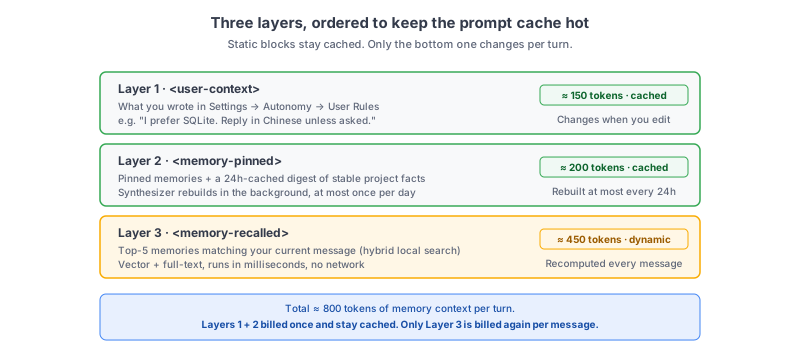
When you send a message, the system assembles three blocks of context for the AI, in this order: your User Rules, your pinned memories, and a fresh search of all your other saved memories using your current message as the query. That third block is the one that fixes the "AI forgot" problem — instead of waiting for the AI to ask for context, the relevant context is already there before the AI starts thinking.
The order matters for cost. The static blocks (Layer 1 and Layer 2) get cached on Claude's side after the first call and stay cached as long as they don't change. Only Layer 3 — the dynamic search results — gets recomputed and re-billed every message. So even though the memory context adds roughly 800 tokens to your prompt, you're only billed for the new ~450 tokens per turn, not the full ~800.
What it actually costs to run
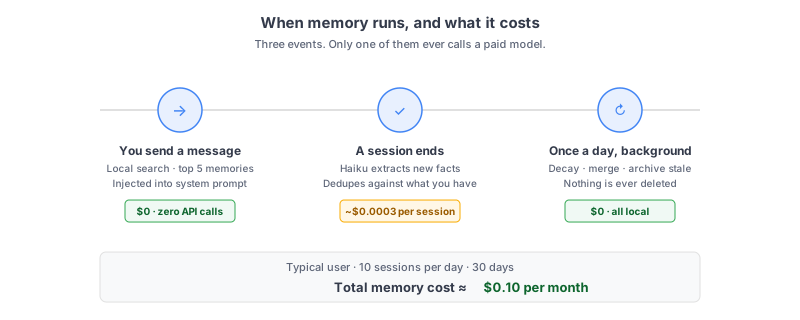
The honest answer to "will this burn tokens?" is no, and it's worth showing why. Memory does three things, and only one of them ever calls a paid model:
- Retrieval (every message) — runs locally on your machine. We use a small on-device embedding model plus a classic full-text index, combine them in milliseconds, and pick the top five matches. Zero API calls, zero tokens consumed by the search itself.
- Extraction (when a session ends) — a cheap Haiku call reads the conversation, pulls out facts worth keeping, and checks them against what's already saved. Roughly $0.0003 per session.
- Maintenance (once a day, background) — decays old memories, merges overlaps, and archives stale ones. All local, no model calls.
Audit trail: see exactly what got injected
Saving also runs locally for everything except the extraction step itself. Nothing is ever permanently deleted — when a memory gets superseded by a newer one, it's archived instead of removed, so you can audit the history if something feels off.
And every user message you send gets a small chip in its footer recording which memories the AI was given when it answered. Hover the bubble, click the chip, see the list. If the AI did something surprising, you can verify exactly what context it had — and pin or invalidate the relevant memory in one click. The chip is the trust mechanism that makes auto-memory safe to leave on.
Where to turn it on (or off)
Everything is on by default for new installs, but every piece is independently controllable in Settings → Autonomy:
- User Rules — toggle at the top of the Autonomy page. Off by default until you write something in the box. The text you write applies globally across all chats.
- Memory extraction — main toggle in the Memory block. Turn it off entirely if you don't want the AI to save anything from your conversations. Existing memories stay; just no new ones are added.
- Inject pinned memories — sub-toggle inside the Memory block. On by default. Turn off if you want to keep pinned memories around as reference without spending tokens on them every turn.
- Auto-extraction model — pick which model does the save-fact work. Default is Haiku (about a tenth of a cent per session); switch to Sonnet for higher recall on technical projects, or any third-party Anthropic-compatible model you've configured.
- Per-project override — open Project Settings on any project to override the global config for just that codebase. Useful for keeping personal projects in full-memory mode and work projects in off mode.
Worth turning on if…
If you work on more than one codebase, use AI for non-trivial features (not just autocomplete), or have ever caught yourself re-explaining the same project convention twice, the new memory will pay for itself in the first week. The save cost is fractions of a cent per day; the retrieval is free; the audit chip on every message means you stay in control.
If you mostly use AI for one-off code completion or you're paranoid about anything being persisted between sessions, leave memory off — User Rules alone is enough to inject a few hand-curated facts globally without any auto-save behavior.
Either way, Memory v2 ships unconditionally in Onevium 1.1.6 — existing memories migrate in place, nothing has to be re-extracted, and the chip-on-every-message audit trail starts working the moment you update.